Interactive Tables in Anysite MCP
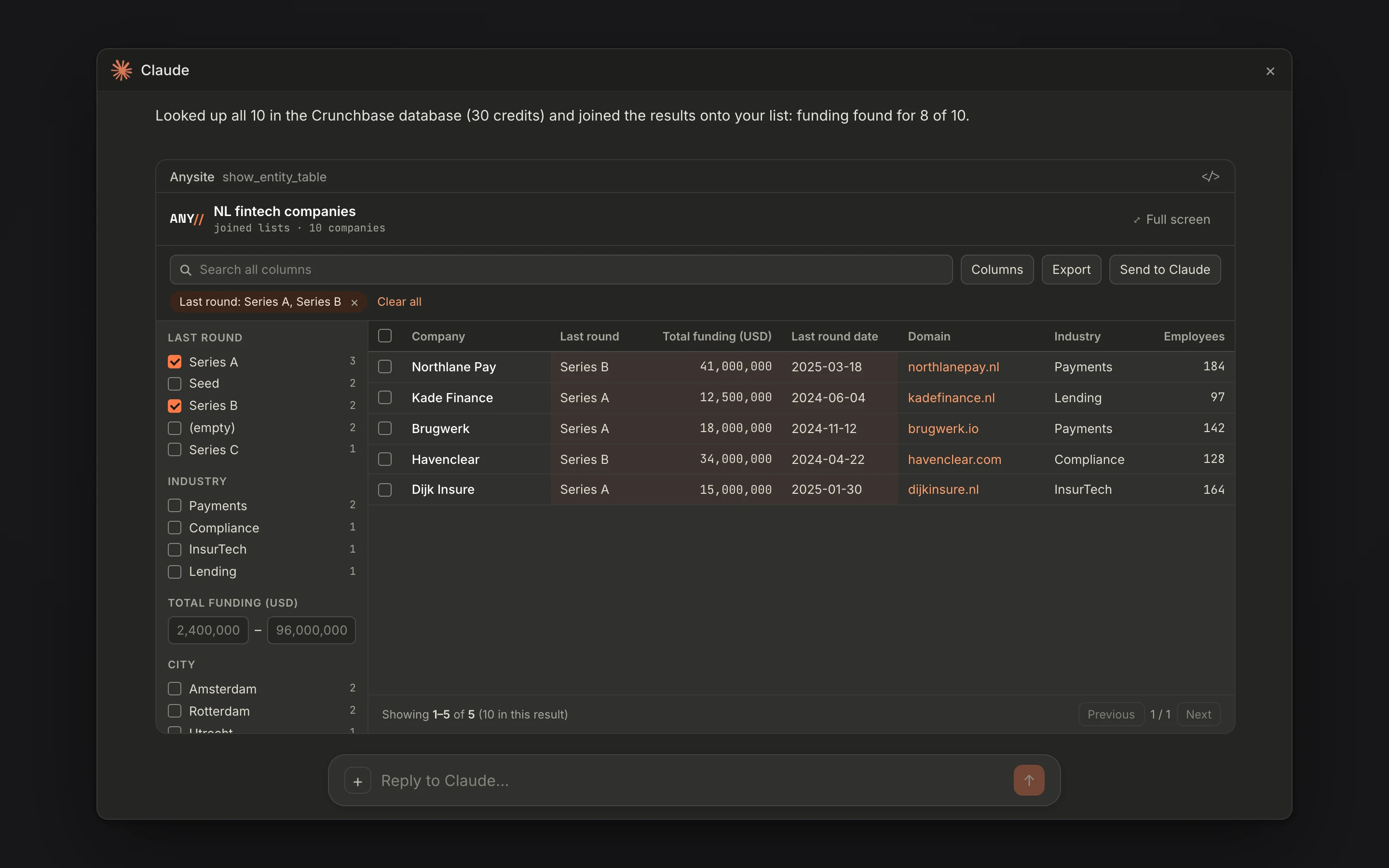
Ask your agent for fintech companies in the Netherlands and, until now, the answer came back as text: a long list in the chat, then a follow-up question for every filter, every extra column, every export. Anysite MCP now answers with an interactive table. The list opens inside the conversation, and everything you would normally ask for in another round trip happens right there.
From a plain-English question to a CRM-ready file, without leaving the chat. The companies in the clip are invented.
Results Open as a Table
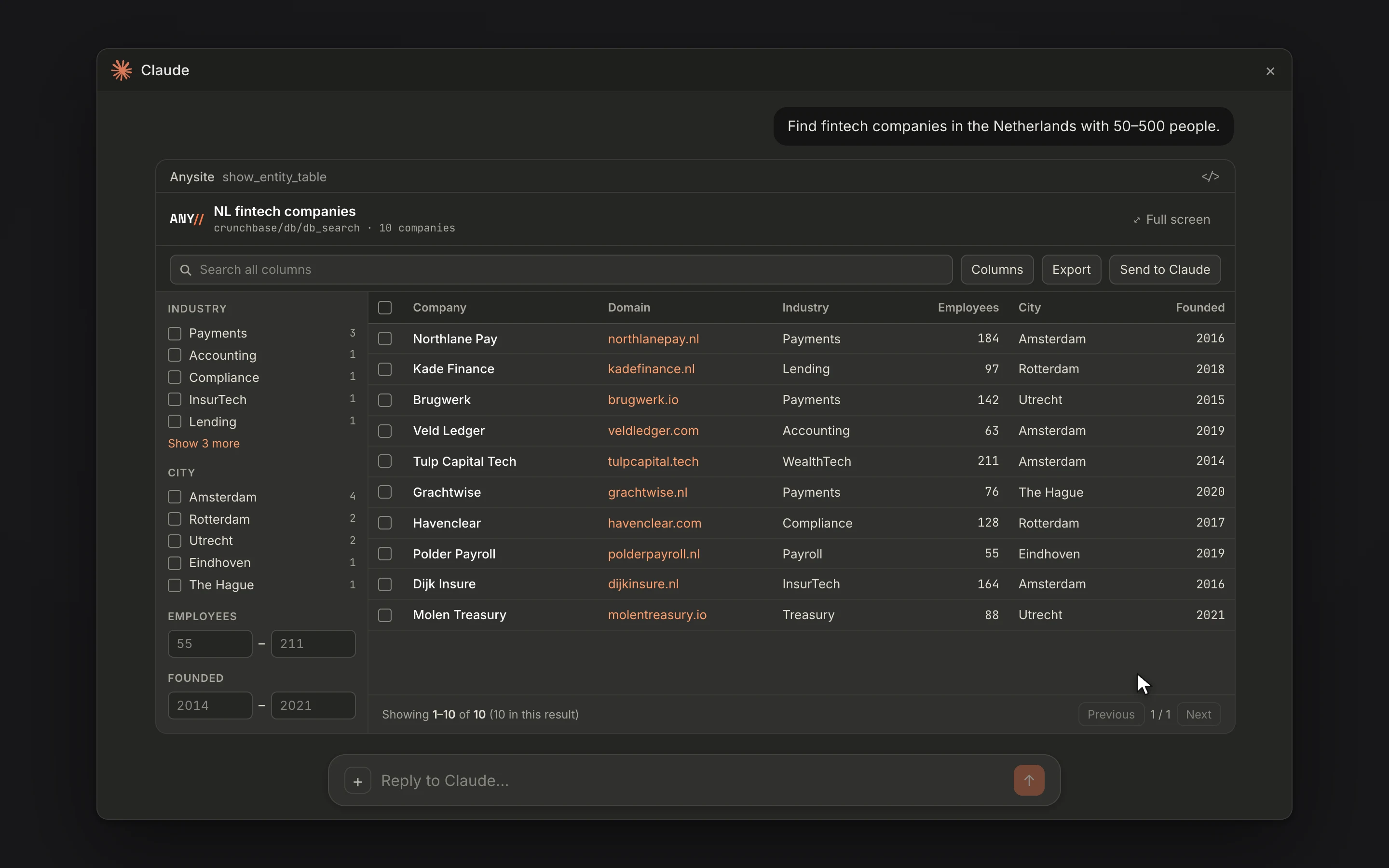
When a search returns companies or people, your agent opens the result with show_entity_table. The table shows the fields that matter first — name, domain, industry, headcount, location, founding year for companies; name, title, company and location for people — with a filter rail on the left built from the data itself: industries with counts, headcount and founding-year ranges, countries, cities.
Search Every Column, Without Spending a Credit
The search box looks through every column — names and domains, but also technologies, investors, skills, cities, even the digits of a founding year. Filters, sorting and grouping by company run against the cached result on the server, so narrowing 500 rows to the 12 you care about costs nothing and never re-runs the search.
Choose What to Add — and See the Cost First
Select rows and press Enrich. Instead of a vague “enrich these”, you pick the data you want: funding and stage, tech stack, team shape, open roles, a fresh company profile, work emails. Each option shows its credit cost and how many of the selected rows qualify, with the total at the bottom, before anything runs.
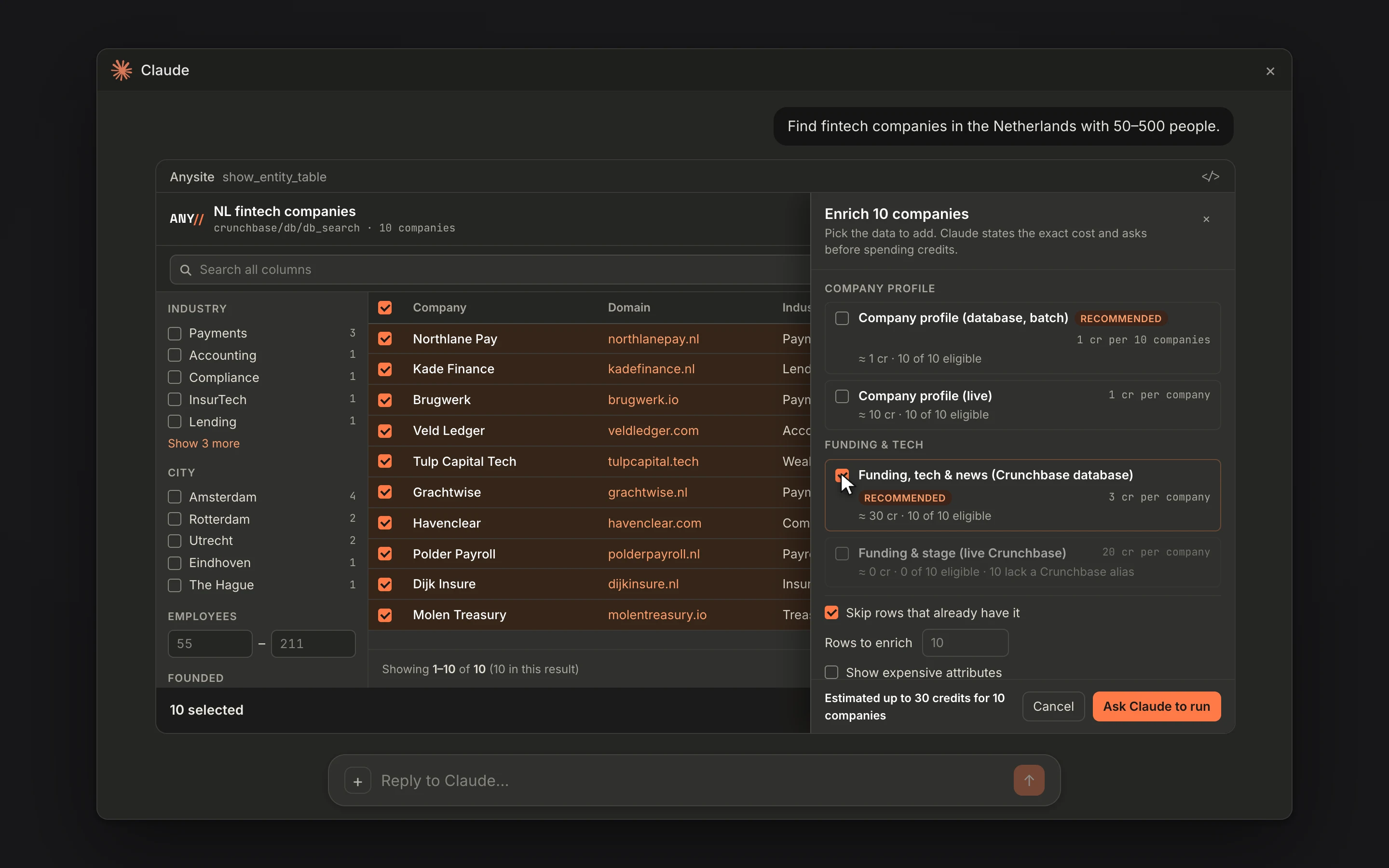
Where a cheaper source exists, it is the default. Funding and stage come from the Crunchbase database first, with the live Crunchbase profile as an explicit option; company profiles come from the database in batches, with the live profile one click away. The expensive options, like phone numbers, sit behind their own switch and need a row limit. The table itself never spends credits: it hands your agent the request, and the agent confirms the exact cost with you before it runs.
New Columns Join the Same List
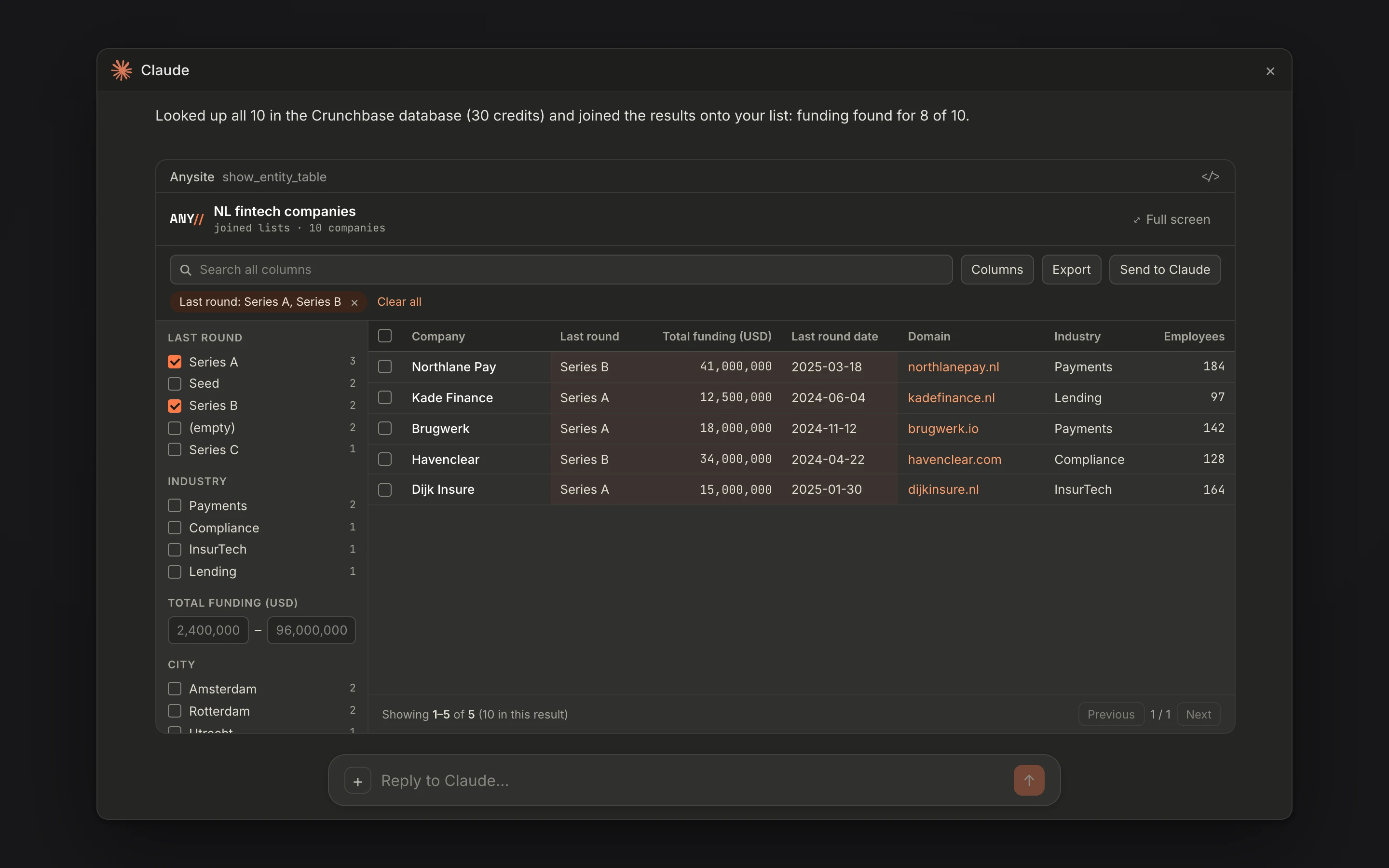
When the enrichment finishes, the new fields do not arrive as a separate list to reconcile. Your agent joins them onto the original rows with merge_data — by company, domain or profile — and reopens the table. The new columns come first, every row is marked enriched or not found, and the filters, sort and selection you had are restored.
Export for Your CRM
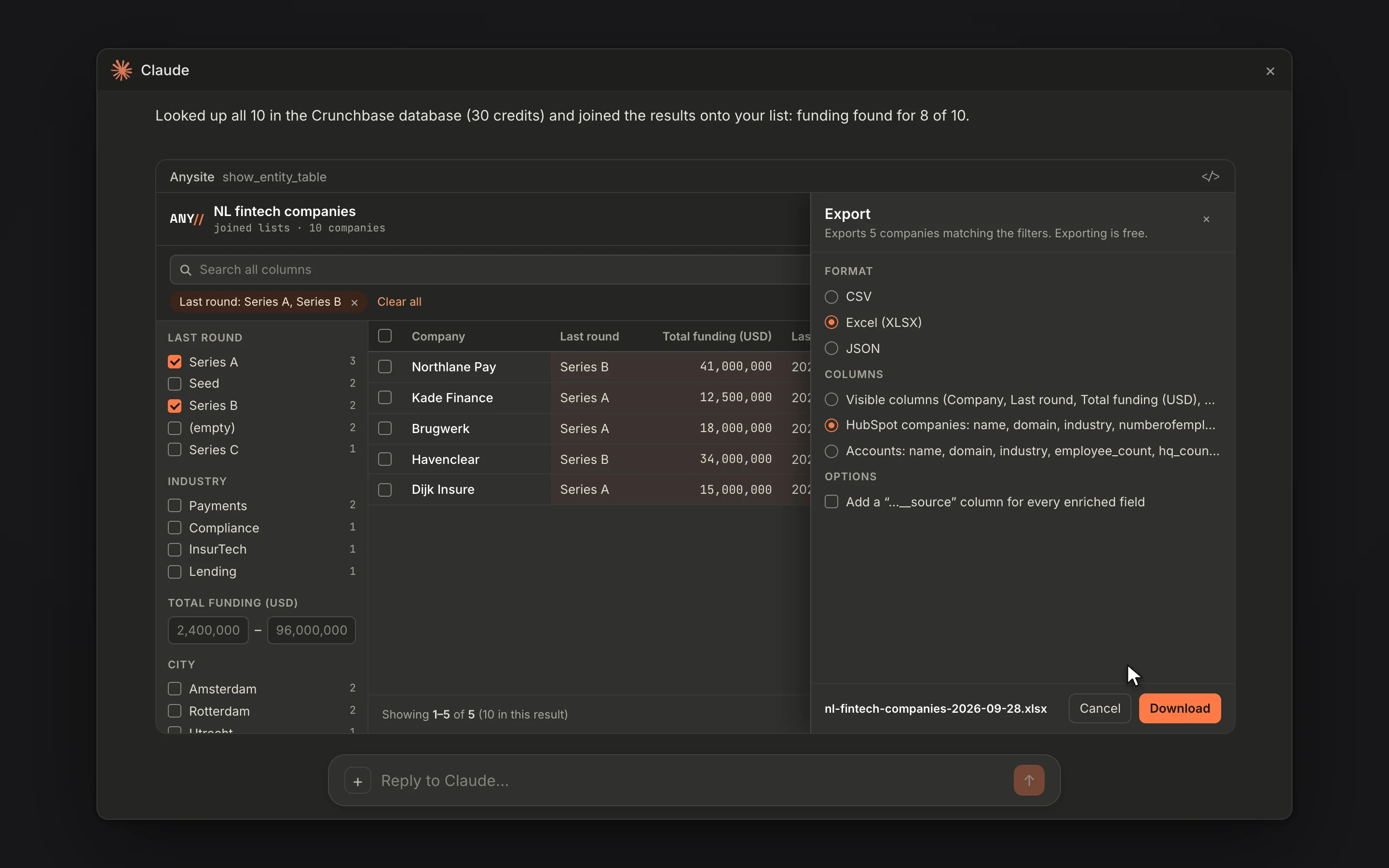
Export takes the selected rows or the whole filtered list as CSV, XLSX or JSON. Presets for HubSpot and Pipedrive name the columns the way those tools expect, and an option adds a source column for every enriched field, so you can see where each value came from.
Where It Works
The table renders in Claude on the web and in the chat of the Claude desktop app. In Claude Code and other clients that do not render MCP Apps yet, the same result arrives as a text preview of the first rows, and your agent filters, joins and exports it in the chat with the same tools.
Try It
Every MCP plan includes the table, from $30 a month with a 7-day free trial. Connect the server in about a minute from the Anysite MCP page, then ask for a list — the table opens on its own.